good note taking apps · 20 min read
Good Note Taking Apps: Cross-Platform Comparison for Students in 2026
Compare the best note taking apps across iPhone, iPad, Windows, Surface, and Samsung devices. Find the perfect app for your study workflow and device setup.
Published October 26th, 2026 · Study Slay team
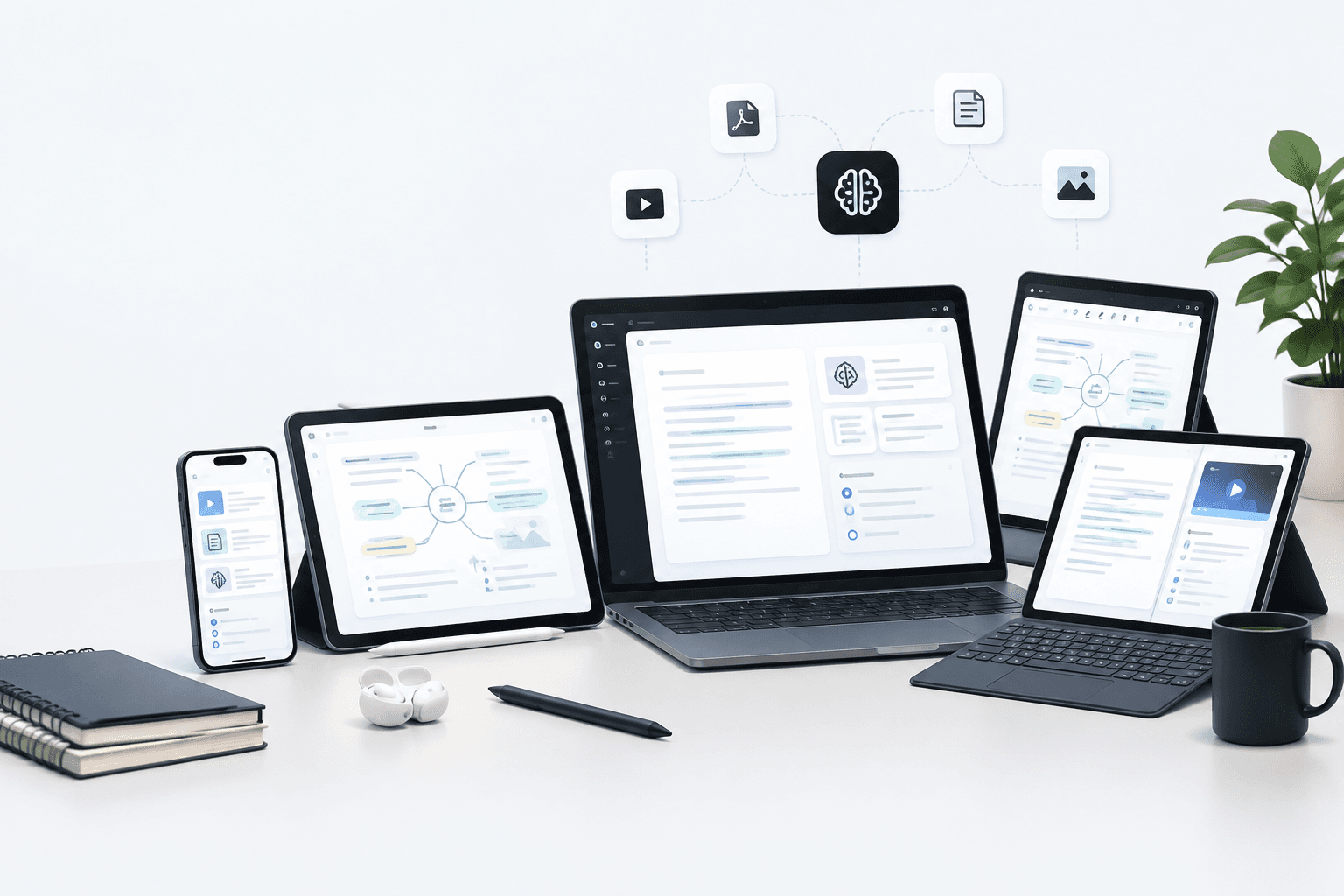
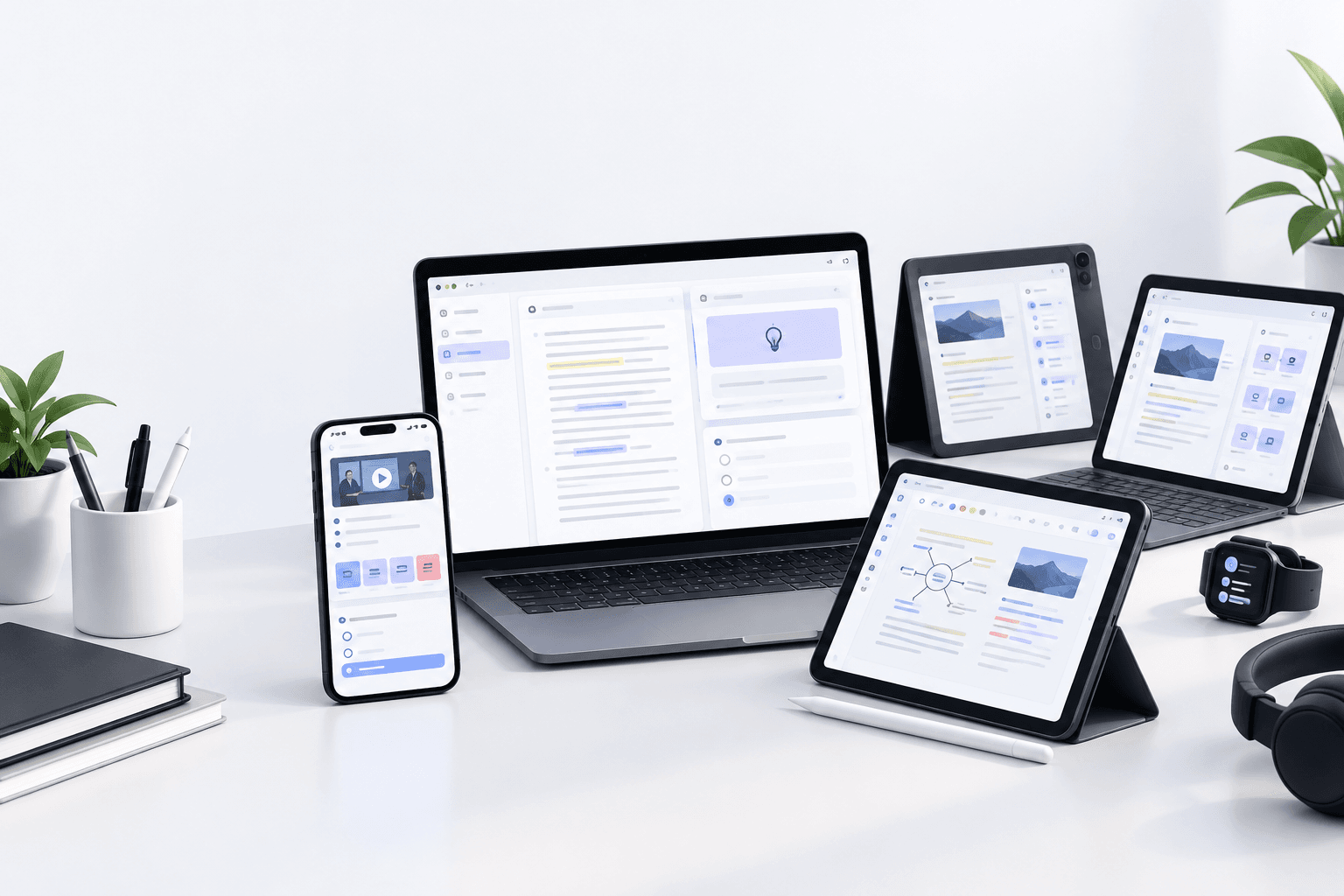
Finding good note taking apps that work seamlessly across all your devices can transform how you capture and review material. This comparison breaks down the top cross-platform options for students juggling lectures on a laptop, textbook annotations on a tablet, and quick captures on a smartphone, so you can choose the app that fits your actual study workflow instead of forcing your workflow around a single device.
Why Cross-Platform Compatibility Matters for Student Note Taking
Cross-platform compatibility ensures your lecture notes, flashcards, and study materials stay synchronized whether you're on an iPhone during your commute, a Windows laptop in the library, or an iPad Pro in class. Most students now own at least two devices from different ecosystems, and switching between them without losing context or waiting for manual syncs directly impacts study efficiency. Apps that support real-time cloud sync across iOS, Android, Windows, macOS, and web interfaces remove the friction of file transfers and version conflicts, letting you pick up exactly where you left off regardless of which device is in your hand.
What Are Good Note Taking Apps in 2026?
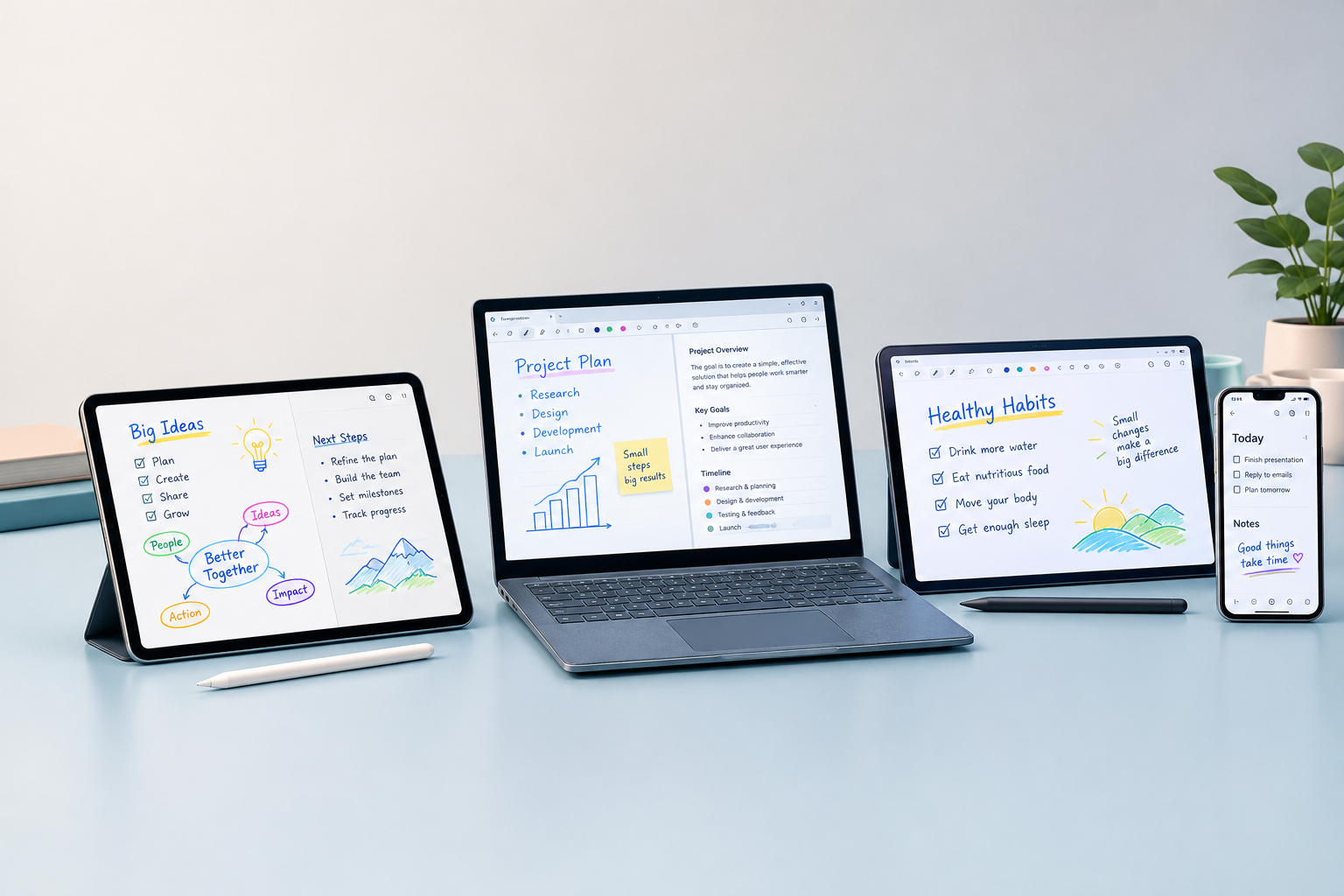
Good note taking apps in 2026 combine fast capture, reliable sync, rich formatting for multimedia content, and integrations with study tools like flashcards and quizzes. The best ones support handwriting with a stylus, typed notes, voice recordings, PDF annotation, and AI-powered features like auto-generated summaries or search across handwritten text. They prioritize offline access so you can work during a flight or in a dead zone, and they export cleanly to formats you can share with study groups or submit for assignments. For students specifically, affordability or free tiers with sufficient storage and device limits are non-negotiable, as is a mobile-first design that doesn't sacrifice functionality when you're away from a desktop.
OneNote: The Free Cross-Platform Workhorse
OneNote offers unlimited notebooks and sections at no cost, syncs via OneDrive across Windows, macOS, iOS, Android, and the web, and supports typed notes, handwriting, audio recordings, embedded files, and web clippings in a single interface. Its free tier includes robust search that indexes handwritten text and audio transcripts, making it a strong choice for students who need to search lecture recordings weeks later. The Windows version includes full stylus pressure sensitivity and shape recognition, while the iPad and iPhone apps provide smooth Apple Pencil integration and touch-friendly navigation. OneNote's biggest advantage is zero cost with no storage cap if you already have a Microsoft account, and its biggest weakness is occasional sync delays on slow connections and a learning curve around its free-form canvas layout.
Notion: All-in-One Workspace for Organized Learners
Notion combines notes, databases, kanban boards, and wikis into a single workspace that syncs instantly across all platforms, making it ideal for students who want to organize class schedules, project timelines, and study resources in one place. Its block-based editor supports embeds from YouTube, Google Drive, Figma, and dozens of other services, so you can annotate a lecture video and link it to a database of flashcards without leaving the app. Notion's free personal plan allows unlimited pages and blocks, and its templates for Cornell notes, spaced repetition trackers, and assignment calendars reduce setup time. However, Notion does not support native handwriting or stylus input, so students who rely on an iPad Pro or Samsung tablet for drawn diagrams and equations will need a separate app for that portion of their workflow and then embed exported images into Notion.
What Are Good Note Taking Apps for iPad Free?
Good note taking apps for iPad that are free include Notability's basic tier, GoodNotes' limited free version, Apple Notes, and OneNote, all of which support Apple Pencil and offer handwriting recognition or palm rejection without requiring a subscription. Apple Notes is the most seamless option if you're already in the Apple ecosystem: it syncs via iCloud to iPhone and Mac instantly, supports inline sketches and scanned documents, and handles typed and handwritten content in the same note. Its search indexes handwriting, and its folder structure is simple enough for students who don't need advanced tagging or linked databases. The downside is that Apple Notes remains locked to Apple devices, so if you later switch to a Windows laptop or Android phone, you'll need to manually export and migrate your entire library.
GoodNotes and Notability: Premium iPad Apps with Limited Free Access
GoodNotes and Notability are the gold standard for stylus-based note taking on iPad Pro, offering vector ink, shape recognition, audio sync to handwritten strokes, and sophisticated PDF annotation tools. Both now offer free tiers with restricted notebook limits: GoodNotes allows three notebooks in its free version, and Notability offers limited editing after a trial period. For students who take most notes by hand and need professional-grade handwriting tools, the paid versions unlock unlimited notebooks, OCR search across handwritten pages, and advanced features like audio playback synced to the exact word you wrote when the recording was made. Neither app offers full Windows or Android clients, though both have web viewers for read-only access, so they're best suited for students who commit to an iPad as their primary study device and use a Mac or web browser as a secondary reference point.
Good Note Taking Apps for Windows and Windows 11
Good note taking apps for Windows 11 prioritize stylus support for Surface devices, fast keyboard shortcuts, and integration with Microsoft Office workflows. OneNote remains the native choice, with deeper Windows 11 integration including ink effects, pressure sensitivity, and dictation via Windows Speech Recognition. Notion and Evernote provide polished desktop clients that sync across platforms but lack handwriting input, making them better for typed lecture notes and research organization than for diagram-heavy subjects like chemistry or engineering. Obsidian, a local-first markdown editor with community plugins, appeals to students who want total control over their data and prefer plain text files that sync via OneDrive or Dropbox, though its learning curve is steeper and it requires manual setup for mobile access.
How Windows Ink and Surface Pen Change the Equation
Windows Ink support in apps like OneNote and Drawboard PDF allows Surface Pro and Surface Go users to annotate PDFs, sketch diagrams, and handwrite equations with the same fluidity as iPad Pro users enjoy with Apple Pencil. The Surface Pen's pressure levels and tilt recognition are fully utilized in OneNote's Windows app, and Windows 11's handwriting panel lets you convert ink to text in any app that accepts typed input. This makes a Surface device with OneNote a cost-effective alternative to an iPad Pro with GoodNotes, especially for students already invested in the Microsoft ecosystem for Word, Excel, and Teams, since notes, documents, and calendar events stay in one cloud without third-party sync services.
Good Note Taking Apps for Samsung Tablet Users
Good note taking apps for Samsung tablets leverage the S Pen's low latency and Samsung Notes' tight integration with the Galaxy Tab ecosystem. Samsung Notes is preinstalled, free, and syncs across Samsung phones, tablets, and Windows via a companion app or Samsung Cloud, with handwriting-to-text conversion and PDF import built in. For students who own a Samsung Galaxy Tab S9 or Tab S8, Samsung Notes offers the smoothest experience for quick captures and basic organization, though its export options and third-party integrations are limited compared to OneNote or Notion. Cross-platform alternatives like OneNote, Notability (via web viewer), and Squid (formerly Papyrus) all support the S Pen and provide richer feature sets for students who need advanced tagging, OCR search, or integration with study platforms like flashcard generators.
Squid: Android-Native Handwriting with Cloud Backup
Squid is an Android-focused note taking app that treats handwriting as a first-class input method, offering vector ink, shape recognition, and PDF annotation without requiring a subscription for basic features. It syncs via Google Drive, Dropbox, or OneDrive, making it device-agnostic on the backend even though its interface is optimized for Android tablets like the Samsung Galaxy Tab series. Squid's premium tier unlocks unlimited notes, OCR text selection in handwriting, and cloud sync across devices, and its interface is cleaner and more intuitive than OneNote's for students who want a focused writing surface without the complexity of nested notebooks and sections. The main limitation is that Squid's iOS and desktop apps are either missing or read-only, so it's best for students who use a Samsung tablet as their primary study device and only need occasional access from a phone or laptop.
What Are Good Note Taking Apps for iPhone?
Good note taking apps for iPhone prioritize quick capture, voice recording, and seamless sync to desktop and tablet versions where you'll do the bulk of editing. Apple Notes excels here with instant sync to iCloud, widget support for one-tap capture, and scanned document quality that rivals dedicated scanner apps. Bear, a markdown-based note app with a free tier and optional pro subscription, offers fast tagging, beautiful typography, and export to PDF or DOCX, though it remains iOS and macOS only. For cross-platform students, OneNote's iPhone app supports audio recording with timestamp links, offline access, and full search across typed and handwritten content synced from other devices, making it the best choice if you also study on Windows or Android hardware.
Voice Memos and Transcription on iPhone
iPhone's built-in Voice Memos app records lectures with high clarity, and its files can be imported into OneNote, Notion, or uploaded to transcription services that generate searchable text and AI summaries. Some note apps like Notability and GoodNotes sync audio directly to handwritten strokes, but for students who primarily use an iPhone for recording and a laptop or tablet for review, exporting Voice Memos to a cross-platform app ensures you can annotate and search the transcript regardless of which device you're on later. This workflow is especially useful for students who attend fast-paced lectures and need to capture everything first, then process and organize it during a dedicated review session on a larger screen.
Good Note Taking Apps for iPad and Apple Pencil
Good note taking apps for iPad and Apple Pencil include Notability, GoodNotes, Nebo, Concepts, and OneNote, each optimized for low-latency ink rendering and palm rejection. Notability's audio sync feature records your professor's voice and links it to the exact handwritten word or diagram you were creating at that moment, so playing back the audio jumps directly to the relevant visual context. GoodNotes excels at PDF annotation with multi-page spread view, custom paper templates, and shape recognition that snaps rough circles and lines into perfect geometry, making it ideal for students in STEM fields who sketch diagrams and flowcharts frequently. Nebo converts handwriting to typed text in real time with industry-leading accuracy, and it recognizes mathematical equations and chemical formulas, turning them into LaTeX or MathML that you can copy into a lab report or problem set.
Comparing Ink Rendering and Export Options
Ink rendering latency varies across apps: GoodNotes and Notability both achieve sub-20ms lag on recent iPad Pro models, making writing feel like pen on paper, while OneNote's iOS app can exhibit slight latency under heavy load or slow network conditions. Export options matter when you need to share notes with study groups or submit annotated PDFs as assignments: GoodNotes exports to PDF with vector ink and flattened annotations, Notability exports audio-synced notes as note files or PDFs, and OneNote exports to PDF or Word with optional OCR text layers. For students who collaborate frequently, choosing an app that exports clean, universally readable PDFs without proprietary file formats reduces friction when sharing with classmates who use different platforms.
Good Note Taking Apps for Microsoft Surface Devices
Good note taking apps for Microsoft Surface leverage Windows Ink API, offering Surface Pen tilt and pressure sensitivity in apps like OneNote, Drawboard PDF, and Nebo. OneNote's Windows app is the flagship experience for Surface devices, with features like ink replay, ruler and protractor overlays, and the ability to convert handwriting to text or math equations inline. Drawboard PDF is a specialized annotation tool that turns your Surface into a digital textbook editor, with tools for highlighting, commenting, and filling out forms directly on PDF lecture slides or research papers. Its subscription unlocks cloud sync and unlimited documents, and its interface is cleaner and more focused than OneNote for students who primarily annotate PDFs rather than creating notes from scratch.
Surface Go vs. Surface Pro for Student Note Taking
Surface Go offers a more affordable entry point with full Windows 11 and Surface Pen support, making it viable for students who need portability and battery life over raw processing power. Its 10.5-inch screen is compact enough to carry between classes without the bulk of a laptop, and OneNote's touch-optimized interface works smoothly even on the lower-spec models. Surface Pro models provide larger screens, faster processors, and better multitasking for students who want to run Zoom, OneNote, and a web browser side by side during virtual lectures. Both devices sync seamlessly to OneDrive, so notes taken on a Surface in class appear instantly on an iPhone or Android phone for review during a commute, making the Surface line a strong cross-platform hub for Windows-first students.
How Cloud Sync Reliability Impacts Your Study Workflow
Cloud sync reliability determines whether edits you make on one device appear instantly on another, or whether you risk version conflicts and lost work. Apps that use native platform sync (iCloud for Apple, OneDrive for Microsoft, Google Drive for Android) generally deliver faster, more reliable sync than third-party solutions, because they're baked into the operating system and prioritize active files. However, single-vendor sync locks you into that ecosystem, so students who mix devices need apps like Notion, Evernote, or OneNote that maintain their own cross-platform sync infrastructure. Offline access is the safety net: apps that cache your most recent notes locally and queue edits for upload when connectivity returns prevent disruptions during flights, subway commutes, or campus dead zones.
Cross-Platform Feature Comparison Table
| App | Platforms | Handwriting | Free Tier | Best For |
|---|---|---|---|---|
| OneNote | Windows, Mac, iOS, Android, Web | Yes (stylus) | Unlimited | Budget-conscious students |
| Notion | Windows, Mac, iOS, Android, Web | No | Unlimited pages | Project management & databases |
| GoodNotes | iOS, Mac, Web (read-only) | Yes (Apple Pencil) | 3 notebooks | iPad-first PDF annotation |
| Notability | iOS, Mac, Web (read-only) | Yes (Apple Pencil) | Limited editing | Audio-synced handwriting |
| Samsung Notes | Android, Windows (via app) | Yes (S Pen) | Unlimited | Samsung Galaxy Tab users |
| Apple Notes | iOS, Mac | Yes (Apple Pencil) | Unlimited | Apple ecosystem only |
AI-Powered Note Taking Features in 2026
AI-powered note taking features in 2026 include auto-generated summaries, intelligent search across handwriting and audio, and automatic flashcard creation from lecture transcripts. OneNote's Copilot integration can summarize pages of meeting notes and extract action items, though it requires a Microsoft 365 subscription. Notion AI drafts outlines, rewrites sentences for clarity, and translates notes between languages with a single click, making it useful for international students or those studying foreign language materials. Dedicated AI study platforms like Study Slay go further by converting uploaded PDFs, lecture recordings, and YouTube videos into structured notes, quizzes, and flashcards automatically, then letting you chat with your notes to test understanding or generate practice questions, creating a feedback loop that traditional note apps can't replicate on their own.
When to Use a Traditional Note App vs. an AI Study Platform
Traditional note apps excel at capturing and organizing raw information during lectures, but they leave synthesis, review, and testing entirely to manual effort. AI study platforms like Study Slay automate the transformation of raw notes into study materials, generating flashcards from key concepts, quizzing you on weak areas identified through spaced repetition analytics, and surfacing connections between topics across multiple lectures or documents. For students who have time to handcraft notes and flashcards, a traditional app plus manual review can suffice, but for those juggling multiple courses, part-time work, and tight deadlines, an AI platform that turns lecture recordings into structured study aids saves hours each week and reduces the cognitive load of deciding what to review next.
Cost Comparison: Free Tiers vs. Paid Subscriptions
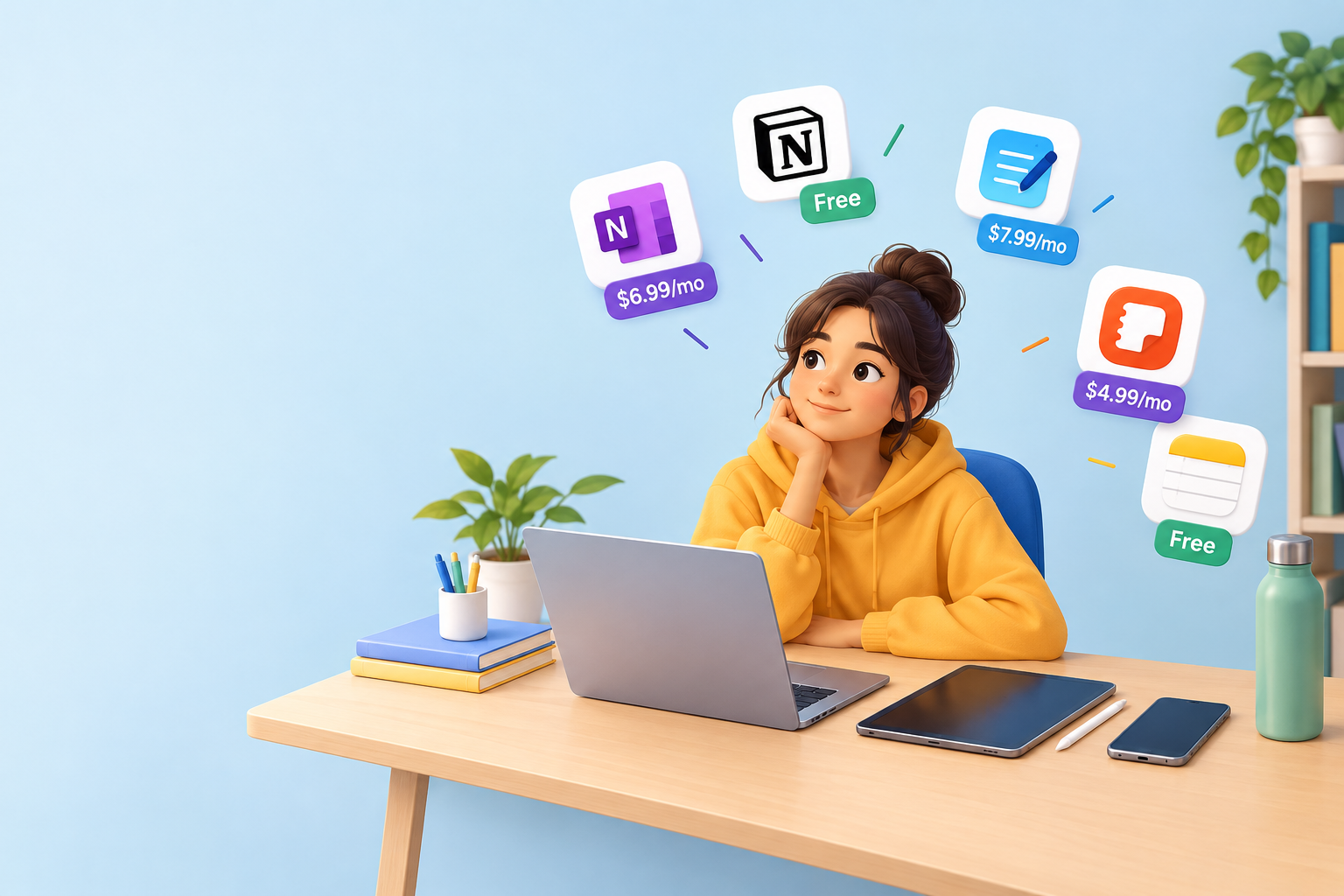
Free tiers from OneNote, Apple Notes, Samsung Notes, and Notion's personal plan provide unlimited basic note taking with no storage caps beyond your cloud provider's limits, making them viable for budget-conscious students. Paid subscriptions unlock advanced features: GoodNotes charges a one-time fee for unlimited notebooks and OCR search, Notability uses an annual subscription for full editing and audio sync, and Notion's premium tiers add version history and advanced permissions for collaborative projects. Students should evaluate whether paid features directly address a bottleneck in their workflow (for example, audio sync if they record every lecture, or unlimited notebooks if they hit a cap mid-semester) rather than paying for features they'll rarely use.
Integration with Study Tools and Flashcard Generators
Integration with study tools and flashcard generators extends the value of your notes beyond passive review. Notion's API lets third-party tools pull note content into spaced repetition systems, and OneNote's OneNote API enables export to Anki or Quizlet with community scripts. Apps like Study Slay import notes from PDFs, Word documents, or direct uploads, then automatically generate flashcards and quizzes using AI that identifies key terms, definitions, and concepts, saving the manual step of copying each fact into a separate flashcard app. This integration is especially valuable for students in memorization-heavy fields like anatomy, languages, or history, where converting a 50-page lecture deck into hundreds of flashcards manually would take hours but can be automated in minutes with the right pipeline.
Exporting Notes for Spaced Repetition and Active Recall
Exporting notes into a spaced repetition system like Anki or a retrieval practice workflow requires clean, structured formatting. Markdown-based apps like Obsidian and Notion export plain text that can be parsed into question-answer pairs, while handwriting-focused apps like GoodNotes export PDFs that require OCR if you want to convert diagrams and annotations into searchable flashcard decks. Platforms that handle this transformation automatically (turning a lecture transcript into cloze deletions or a PDF into multiple-choice quizzes) eliminate the manual formatting step and let you start reviewing the same day you capture the material, compressing the time between exposure and active recall testing that drives long-term retention.
Privacy and Data Ownership Considerations
Privacy and data ownership matter when your notes contain personal information, unpublished research, or material covered by academic integrity policies. Cloud-synced apps like OneNote, Notion, and Evernote store your content on their servers, where it's subject to their terms of service and may be used to train AI models unless you opt out. Local-first apps like Obsidian and Joplin store notes as plain text files on your device and sync via your own cloud provider, giving you full control and the ability to delete or migrate data without vendor lock-in. Students working with sensitive research data or those concerned about AI training on their notes should prioritize apps with end-to-end encryption or local storage options, and always check whether the app's free tier includes the same privacy protections as paid plans.
Which App Wins for Each Device Ecosystem?
For iPad Pro and Apple Pencil users who stay within the Apple ecosystem, GoodNotes or Notability offer the most polished handwriting experience with seamless iCloud sync and no need to compromise on ink quality or export options. Windows 11 and Surface users get the best value from OneNote, which is free, fully featured, and deeply integrated with Windows Ink and the Microsoft 365 suite. Samsung Galaxy Tab owners should start with Samsung Notes for zero-cost handwriting and adequate sync, then upgrade to Squid or OneNote if they need advanced search or cross-platform access beyond the Samsung ecosystem. Students who mix devices across iOS, Android, Windows, and web should default to OneNote for free unlimited storage or Notion for powerful organization and collaboration, accepting the trade-off that neither matches the handwriting refinement of platform-specific apps like GoodNotes or Samsung Notes.
Frequently Asked Questions
What is the best free note taking app that works on all devices?
OneNote is the best free note taking app that works on all devices, offering unlimited storage, real-time sync across Windows, macOS, iOS, Android, and web, handwriting support with stylus pressure sensitivity, audio recording, and OCR search without any subscription or notebook caps. Its free tier includes every core feature, making it the top choice for students who need cross-platform access without budget constraints.
Can I use GoodNotes on a Windows laptop?
GoodNotes does not have a native Windows laptop app, but it offers a web viewer at goodnotes.com that provides read-only access to your notes synced from iPad or Mac, allowing you to view and export PDFs on a Windows device without full editing capability. For students who need to take notes on Windows, OneNote or Notion are better alternatives with full editing and sync on all platforms.
Which note taking app has the best handwriting recognition?
Nebo has the best handwriting recognition for converting ink to typed text in real time, with support for mixed handwriting, math equations, diagrams, and multiple languages, and it works across iPad, Android, and Windows devices. Its AI accurately interprets cursive, print, and technical notation, turning handwritten notes into editable text or LaTeX without manual correction in most cases, making it ideal for students who want the flexibility of handwriting with the searchability and export options of typed text.
Do good note taking apps work offline?
Most good note taking apps work offline by caching recent notes locally and queuing edits for sync once connectivity returns. OneNote, GoodNotes, Notability, Samsung Notes, and Apple Notes all allow you to create, edit, and search notes without an internet connection, then automatically sync changes to the cloud when you reconnect, ensuring uninterrupted access during flights, subway commutes, or areas with weak cellular signal.
Can I share notes from these apps with classmates who use different devices?
You can share notes from most good note taking apps by exporting to PDF or sharing a web link that works on any device. OneNote lets you share entire notebooks via a link that opens in the web app, Notion shares pages with granular permission controls, and GoodNotes, Notability, and Samsung Notes all export to PDF for universal compatibility, ensuring classmates on different platforms can view and annotate the shared material without installing the same app.

Choosing the Right App for Your Study Workflow
Choosing the right note taking app depends on whether you prioritize handwriting quality, cross-platform sync, cost, or integration with study tools. Students who take handwritten notes primarily on an iPad or Samsung tablet should prioritize apps like GoodNotes, Notability, or Samsung Notes that optimize for stylus input, even if it means weaker desktop or phone experiences. Those who type most notes and need robust organization across multiple classes and projects benefit more from Notion or OneNote, which trade handwriting refinement for powerful databases, templates, and collaboration features. Budget-conscious students should start with free options (OneNote, Samsung Notes, Apple Notes) and only upgrade to paid tiers when a specific limitation (notebook caps, missing features) becomes a concrete obstacle to their workflow, rather than paying preemptively for features they might not use.
For students looking to go beyond passive note storage and turn lecture content into active study materials, combining a traditional note app with an AI-powered platform like Study Slay creates a complete workflow: capture raw material in OneNote or GoodNotes, then upload PDFs, recordings, or documents to generate flashcards, quizzes, and interactive AI chat sessions that test your understanding and identify knowledge gaps. This two-tool approach balances the flexibility of freeform note taking with the efficiency of automated review, helping you study smarter without sacrificing the capture method that works best for your device and learning style. Explore Study Slay's features to see how AI can transform your notes into a structured study system that adapts to your progress and keeps you focused on the material that matters most.