good note taking apps · 16 min read
Good Note Taking Apps for Every Device and Learning Style
Find good note taking apps for iPhone, iPad, Windows, and Samsung. Compare free and paid options by device, features, and compatibility with Apple Pencil.
Published November 5th, 2026 · Study Slay team
Choosing the right note taking app can transform your study sessions from chaotic scrambles into organized, efficient workflows, but only if the app matches both your device ecosystem and the way you actually learn.
With hundreds of good note taking apps competing for your attention, each promising seamless sync, handwriting recognition, or AI-powered features, the real challenge isn't finding options but identifying which one fits your hardware, budget, and study habits. This guide breaks down the best choices by device platform and learning preference, so you can skip the trial-and-error phase and start building better notes today.
Why Device Compatibility Matters More Than Features
The best note taking app for you is the one that works reliably on every device you own, because fragmented notes across platforms kill productivity faster than missing features ever will. A powerful Windows-only app won't help when you're reviewing flashcards on your iPhone during a commute, and an iPad-exclusive tool becomes useless the moment you switch to a laptop for typing long research summaries.
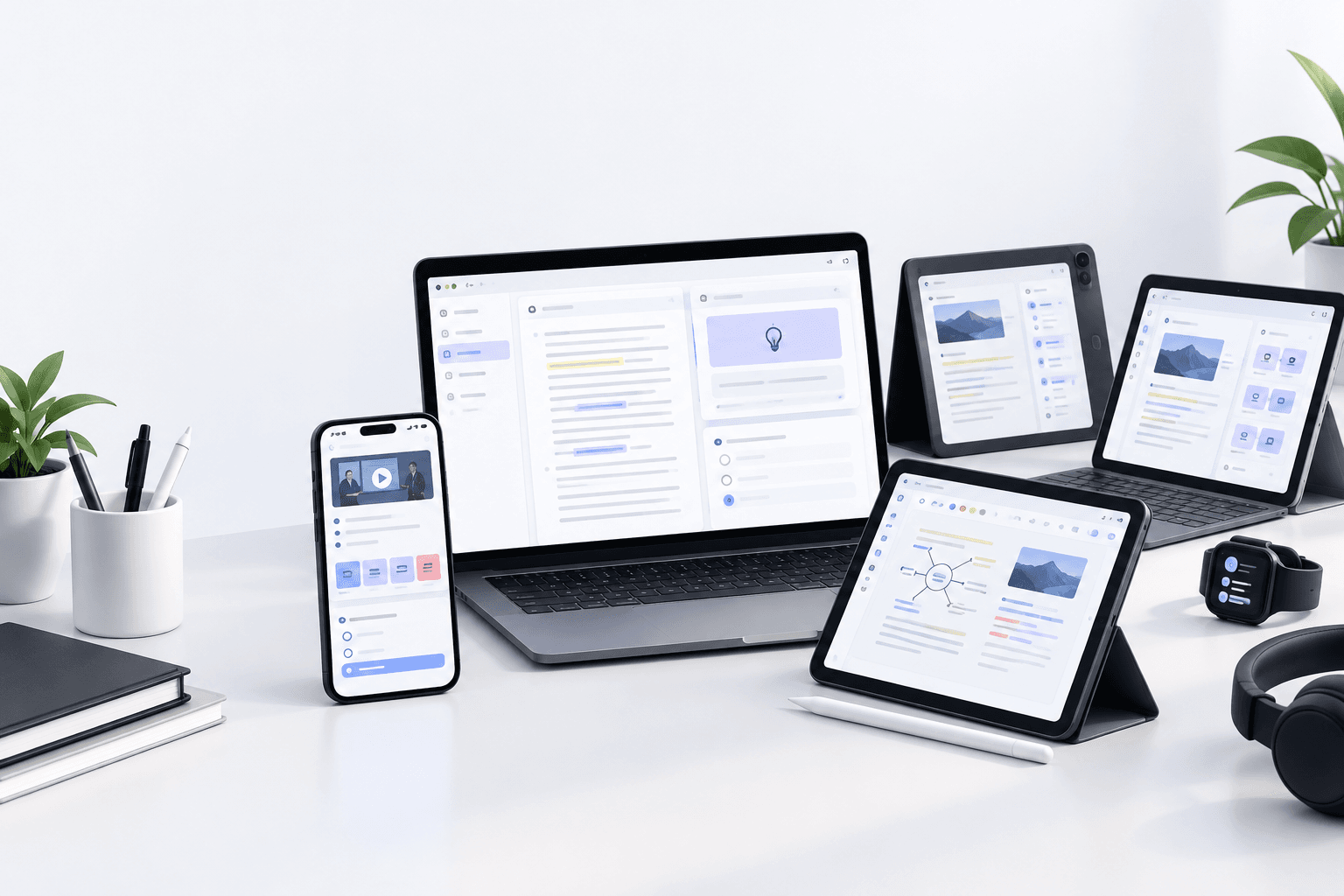
Cross-platform sync keeps your lecture notes, flashcards, and study materials accessible whether you're handwriting on a tablet in class or typing on a desktop at the library. Look for apps that store data in the cloud and offer native versions for iOS, Android, Windows, and macOS rather than forcing you into browser-only access on some devices.
What Are Good Note Taking Apps for iPhone?
Good note taking apps for iPhone prioritize quick capture, voice recording integration, and seamless iCloud sync so you can jot down lecture insights the moment they happen, even when your laptop is packed away. Apple Notes comes preinstalled and handles text, sketches, scanned documents, and audio recordings with zero learning curve, making it ideal for students who want instant reliability without downloading anything new.
Notion offers a more flexible structure with databases, toggles, and embedded content, perfect for students who organize notes by course, week, or topic in linked pages. Bear provides markdown support and a clean interface for those who prefer lightweight, distraction-free typing with tagging instead of folders. For AI-powered note enhancement, Study Slay turns recorded lectures and uploaded documents into structured notes and quiz questions directly on your iPhone, bridging the gap between raw capture and active study materials.
What Are Good Note Taking Apps for iPad Free?
Free options for iPad deliver solid handwriting and typing functionality without subscription fees, though most limit advanced features like unlimited cloud storage or export formats. Apple Notes remains the strongest free choice, supporting Apple Pencil for handwriting, shape recognition, and inline sketches alongside typed text, all synced across your iCloud devices at no cost.
Notability offers a limited free tier that includes basic handwriting and audio recording but caps the number of edits and subjects, making it workable for students with one or two courses. OneNote from Microsoft provides completely free unlimited notebooks, sections, and cloud sync across Windows, iOS, and Android, though its canvas-style interface takes longer to master than linear apps. GoodNotes offers a free version with restricted notebook slots, giving you a preview of its polished handwriting experience and PDF annotation tools before committing to the paid unlock.
Best Good Note Taking Apps for iPad and Apple Pencil
Apps designed for Apple Pencil transform your iPad into a digital notebook that rivals paper for handwriting feel while adding layers, search, and infinite page space. GoodNotes 6 leads this category with smooth ink rendering, customizable pen styles, and OCR that makes your handwritten lecture notes fully searchable, plus robust PDF annotation for marking up textbook chapters and research papers.
Notability pairs handwriting with synchronized audio playback, so tapping a note replays the lecture audio from that exact moment, ideal for reviewing complex explanations you wrote down but didn't fully understand in class. Nebo interprets your handwriting in real time, converting it to typed text or preserving the ink based on context, and recognizes diagrams and math equations with surprising accuracy. Concepts offers an infinite canvas and vector-based strokes, appealing to visual learners who sketch mind maps, timelines, or annotated diagrams rather than linear note outlines.
Choosing Between Paid and Free iPad Apps
Paid apps typically charge a one-time fee between fifteen and thirty dollars, unlocking unlimited notebooks, advanced export options, and shape recognition, while free tiers restrict notebook count or feature access. Evaluate your course load and study volume: if you're managing five classes with heavy PDF annotation and weekly lecture recordings, the investment in GoodNotes or Notability pays off in saved time and reduced friction, but if you're taking one or two lighter courses, Apple Notes or the free OneNote tier may cover your needs without expense.
What Are Good Note Taking Apps for Windows?
Good note taking apps for Windows balance keyboard-driven workflows with optional pen input for Surface and tablet PC users, emphasizing fast typing, tagging, and search across thousands of notes. OneNote integrates tightly with the Microsoft ecosystem, offering free unlimited cloud storage via OneDrive, desktop and web versions, and a flexible canvas where you can type, draw, insert files, and record audio anywhere on the page.
Obsidian stores notes as plain markdown files on your local drive, appealing to students who want full data ownership, bidirectional linking between topics, and a graph view that visualizes connections across your entire knowledge base. Notion runs as a native Windows app or in the browser, combining note pages with databases, kanban boards, and calendars, perfect for students who plan assignments, track deadlines, and organize lecture summaries in one unified workspace. Evernote provides robust search including text inside images and PDFs, web clipping for research, and cross-device sync, though recent pricing changes have pushed some students toward free alternatives.
Good Note Taking Apps for Windows 11
Windows 11 introduces native support for digital pen gestures, improved tablet mode, and tighter OneDrive integration, making modern apps feel faster and more touch-friendly than on older OS versions. OneNote benefits from Windows 11's ink workspace, letting you launch quick notes from the taskbar and convert handwritten equations to typed math with a single tap, streamlined for students using Surface devices or pen-enabled laptops.
Notion and Obsidian both run smoothly as native apps on Windows 11, with improved snap layouts that let you dock your notes side by side with a browser or PDF reader during research sessions. Windows 11's native Sticky Notes syncs across devices via Microsoft account and integrates with Cortana reminders, useful for quick to-do lists and lecture reminders but too limited for comprehensive course notes. For AI-enhanced note generation, platforms like Study Slay work in any Windows 11 browser, turning uploaded lecture recordings and PDFs into structured study materials without requiring local app installation.
How to Match Apps to Your Learning Style
Your learning style determines which app features actually improve retention versus which ones just look impressive in marketing screenshots. Visual learners benefit from apps with drawing tools, color coding, and inline images, making GoodNotes, Notability, or Concepts strong picks for creating annotated diagrams, color-coded mind maps, and illustrated concept summaries that stick in memory better than plain text.
Auditory learners should prioritize apps that record and sync audio with notes, such as Notability or OneNote, so reviewing written points replays the professor's explanation, reinforcing understanding through both channels. Reading and writing learners thrive with keyboard-first apps like Obsidian, Notion, or Bear that encourage extensive typed notes, easy reorganization, and bidirectional linking to build a web of connected ideas across topics. Kinesthetic learners who retain information through doing should look for apps that integrate with quiz and flashcard generation, transforming passive notes into active retrieval practice exercises.
Should You Handwrite or Type Your Notes?
Handwriting on a tablet with Apple Pencil or Surface Pen slows your capture speed but forces summarization and improves retention for conceptual material like theories, processes, and frameworks. Typing lets you capture verbatim lecture content faster, ideal for detailed case studies, legal definitions, or technical specifications you'll need to reference later, but research suggests it reduces active processing during the initial capture.
The best approach often combines both: type dense factual content for speed, then sketch diagrams, annotate key points by hand, and add color highlights during review sessions to deepen encoding. Apps like OneNote, Notability, and GoodNotes support mixing handwriting and typed text on the same page, giving you flexibility to switch methods within a single lecture as the content shifts between data-heavy slides and conceptual explanations.
Good Note Taking Apps for iPad Pro
iPad Pro's larger screen and second-generation Apple Pencil unlock advanced workflows like split-view note taking with a textbook PDF open beside your notebook, and palm rejection smooth enough for extended handwriting sessions. GoodNotes and Notability scale beautifully to the 12.9-inch display, letting you view two pages side by side or zoom into detailed annotations without the cramped feeling of smaller tablets.
LiquidText excels on iPad Pro by letting you pull excerpts from PDFs into a dynamic workspace where you can connect quotes, add notes, and rearrange ideas visually, perfect for literature reviews and research papers that synthesize multiple sources. Collanote offers a free, open-source alternative with multi-window support, handwriting recognition, and audio recording, appealing to budget-conscious students who want pro-level features without the price tag. The Pro's processing power also handles AI-enhanced tools smoothly, so browser-based platforms like Study Slay run without lag when generating flashcards or quizzes from your uploaded lecture notes.
Good Note Taking Apps for Samsung Tablet
Samsung tablets running Android provide solid note taking with the S Pen, though the app ecosystem skews more toward cross-platform tools than iPad-exclusive premium options. Samsung Notes comes preinstalled on Galaxy Tab devices and offers capable handwriting, PDF annotation, voice recording, and automatic sync with Samsung Cloud and OneNote, giving you a zero-cost starting point that handles most student needs competently.
OneNote works identically on Samsung tablets as it does on Windows or iPad, making it the top pick for students who switch between a Galaxy Tab and a Windows laptop or need to collaborate with classmates on different platforms. Squid (formerly Papyrus) provides natural handwriting feel optimized for S Pen pressure sensitivity, layers for complex diagrams, and vector-based notes that stay crisp when zoomed, though it lacks audio recording found in Notability. Nebo supports Samsung's S Pen with real-time handwriting conversion and math recognition, turning your Galaxy Tab into a capable digital notebook for STEM courses with heavy equations and technical diagrams.
Good Note Taking Apps for Microsoft Surface
Microsoft Surface devices bridge laptop productivity and tablet flexibility, making hybrid apps that excel at both keyboard typing and Surface Pen inking the ideal match. OneNote dominates this category as a first-party Microsoft app, delivering seamless pen input, typed text, embedded files, and audio recording in a single canvas that syncs instantly across all your Windows and mobile devices.
Drawboard PDF turns your Surface into a powerful PDF annotation machine, perfect for marking up lecture slides, research papers, and textbook excerpts with highlights, handwritten notes, and text comments, though it lacks notebook organization for original note creation. Nebo leverages Surface Pen for intelligent handwriting conversion and diagram recognition, with a clean interface that switches fluidly between pen and keyboard input mid-sentence. For students who want AI assistance beyond manual note capture, Study Slay works in any Surface browser, transforming lecture recordings and uploaded documents into organized notes and active study tools without requiring Windows app installation.
Comparing Cross-Platform Note Taking Apps
Cross-platform apps eliminate the anxiety of vendor lock-in and ensure your notes remain accessible regardless of which device you upgrade to next semester. The table below compares leading options by platform support, core features, and pricing structure to help you identify which ones match your device mix and budget.
| App Name | Platforms | Key Strengths | Cost Model |
|---|---|---|---|
| OneNote | Windows, Mac, iOS, Android, Web | Unlimited free storage, flexible canvas, audio recording | Free with Microsoft account |
| Notion | Windows, Mac, iOS, Android, Web | Databases, templates, project management integration | Free personal, paid teams |
| Evernote | Windows, Mac, iOS, Android, Web | OCR in images, web clipper, powerful search | Free limited, paid tiers |
| Obsidian | Windows, Mac, iOS, Android, Linux | Local storage, bidirectional links, graph view | Free personal, paid sync |
| GoodNotes | iOS, Mac, Windows, Android | Premium handwriting, OCR, PDF annotation | One-time purchase or subscription |
Platform coverage matters most when you work across different ecosystems: if you own an iPad, a Windows desktop, and an Android phone, OneNote or Notion provides the smoothest experience, while iOS-only students gain more value from GoodNotes' polished Apple Pencil integration.
Does Sync Speed Actually Matter?
Sync speed determines whether edits you make on your iPad during a morning lecture appear instantly on your laptop when you open it for an afternoon study session, or whether you stare at outdated notes for minutes while the app catches up. Apps with native sync infrastructure like OneNote, Notion, and Apple Notes typically update within seconds across devices, while third-party solutions relying on Dropbox or Google Drive sync can lag by minutes, especially with large handwritten notebooks or embedded media.
Features That Separate Good Apps from Great Ones
The difference between a good note taking app and a great one lies in features that actively reduce friction during capture, review, and retrieval rather than just checking boxes on a feature list. OCR (optical character recognition) in handwritten notes transforms scrawled lecture summaries into searchable text, so typing a keyword surfaces the exact page where you wrote it weeks ago, eliminating the scroll-and-scan hunt that wastes precious study time.

Audio-note sync replays the lecture from the moment you tapped a specific note, letting you rehear a professor's explanation of a confusing concept without scrubbing through an hour-long recording. Templates for Cornell notes, outlines, or weekly planners eliminate setup time and enforce consistent structure across your courses, making review sessions faster because your brain recognizes the layout instantly. Tag-based organization beats rigid folder hierarchies when a single note touches multiple topics, such as a case study that applies to both your marketing and ethics courses.
How Important Is Offline Access?
Offline access keeps your notes editable during flights, subway commutes, or in lecture halls with unreliable Wi-Fi, syncing changes automatically once connectivity returns. Most premium apps like GoodNotes, Notability, and OneNote cache your recent notebooks locally by default, while browser-first tools like Notion require manual offline mode setup or fail entirely without internet, making them risky for students with inconsistent connectivity.
AI-Powered Note Taking and Study Tools
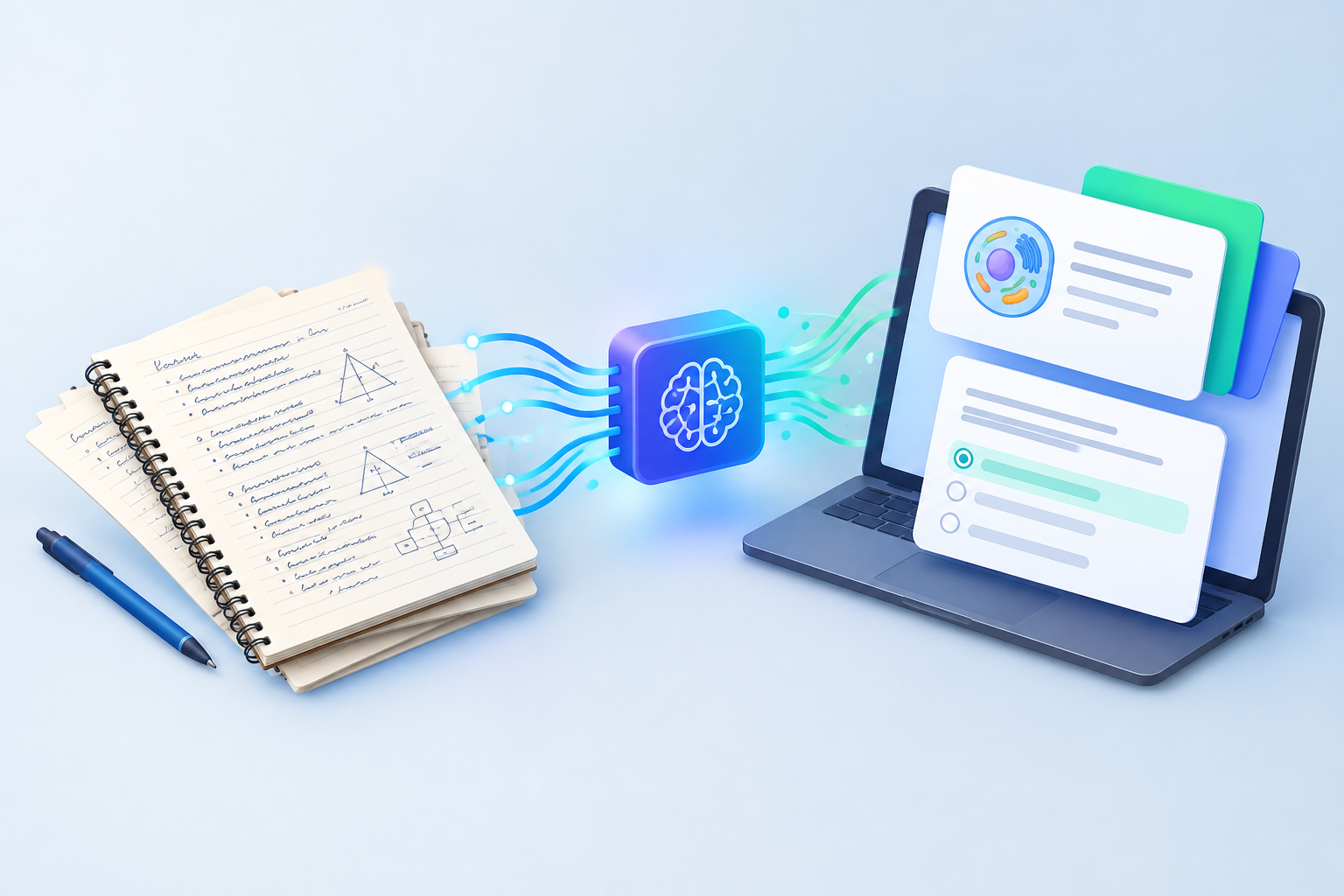
AI-powered note taking apps automate the transformation of raw lecture recordings, PDFs, and YouTube videos into structured summaries, flashcards, and practice quizzes, cutting review prep time from hours to minutes. Traditional note apps require you to manually organize, condense, and convert your notes into study materials, but AI tools handle that heavy lifting automatically, identifying key concepts, generating questions, and creating retrieval practice exercises from your source content.
Study Slay exemplifies this approach by turning uploaded lectures and documents into searchable AI notes, then generating flashcards and quizzes tailored to your material, accessible across every device without manual reformatting. Other emerging AI features include smart summarization that condenses ten pages of notes into a one-page review sheet, question prediction that anticipates likely exam questions based on lecture emphasis, and chat interfaces that let you ask questions of your notes as if quizzing a study partner. These tools work best when paired with active review: the AI handles the tedious organization and generation, freeing your time for the high-value work of testing yourself and filling knowledge gaps.
How to Test Apps Without Wasting Time
Testing multiple apps efficiently requires focusing your trial on real study tasks rather than exploring every menu and setting, so pick one upcoming lecture and capture notes in each candidate app using your actual workflow. Evaluate how quickly you can start a new note during the opening moments of class, whether the app keeps pace when the professor talks fast, and if you can find a specific detail from that lecture three days later without excessive scrolling or searching.
Pay attention to friction points that compound over a semester: does syncing drain your battery noticeably, do handwritten diagrams look pixelated when zoomed, does exporting to PDF for a study group require five taps or fifteen? Limit your trial to three apps maximum and give each one a full week of real use rather than bouncing between five apps in two days, because surface-level testing misses the workflow issues that only emerge during sustained daily capture and review cycles.
Frequently Asked Questions
What is the best free note taking app for students?
OneNote stands out as the best free option because it offers unlimited cloud storage, works across Windows, Mac, iOS, Android, and web, supports handwriting and audio recording, and never caps your notebook count or feature access, making it a complete solution without paid tiers holding essential functions hostage.
Can I use the same note taking app on my iPhone and Windows laptop?
Yes, cross-platform apps like OneNote, Notion, Evernote, and Obsidian sync seamlessly between iPhone and Windows, letting you capture quick notes on your phone during breaks and expand them into full study guides on your laptop later, with all changes reflected across devices within seconds of saving.
Do I need Apple Pencil to take good notes on iPad?
Apple Pencil dramatically improves handwriting accuracy, palm rejection, and pressure sensitivity compared to typing or using your finger, but it is not mandatory for effective note taking if you prefer keyboard input or rely on typed notes, audio recordings, and text annotations instead of freehand writing and diagrams.
Which note taking app works best for math and science courses?
Apps with strong handwriting support and equation recognition excel in STEM courses, so GoodNotes, Notability, and Nebo on iPad or Surface let you write complex formulas, draw labeled diagrams, and sketch graphs with the same speed and flexibility as pen and paper, while OneNote's math assistant solves handwritten equations and shows step-by-step work.
How do AI note taking tools improve studying?
AI note taking tools convert passive lecture recordings and documents into active study materials like flashcards and practice quizzes automatically, reducing the time spent manually creating review tools and letting you focus energy on retrieval practice and identifying weak areas, which research shows drives better long-term retention than rereading notes alone.
Making Your Final Decision
The right note taking app balances device compatibility, learning style alignment, and feature depth without overcomplicating your workflow or locking you into an ecosystem you might outgrow. Start by listing every device you use regularly for studying, then eliminate any app that lacks a native version or reliable sync for even one of those platforms, because fragmented access will frustrate you daily no matter how polished the app looks on a single device.
Next, identify whether you learn best through handwriting, typing, audio review, or visual diagrams, and prioritize apps that excel in that mode rather than offering mediocre support for everything. If your courses involve heavy lecture recordings or document-based study, consider AI-enhanced platforms like Study Slay that transform raw content into structured notes and active study tools, saving hours of manual reformatting each week. Finally, commit to one app for an entire semester rather than switching mid-term, because the time invested in mastering shortcuts, organizing notebooks, and building consistent habits pays off only when you stick with a system long enough for it to become automatic.
Good note taking apps adapt to your devices and study habits rather than forcing you to adapt to their limitations, and the best choice is the one you will actually open every day without friction. Test your top contenders with real lecture content, evaluate sync speed and offline reliability under your actual conditions, and choose the app that disappears into your workflow so you can focus on learning instead of managing tools.